

How to Install VS Code in Windows Step-by-Step Setup Guide
VS Code
How to Install VS Code in Windows Step-by-Step Setup Guide. Visual Studio Code, commonly known as VS Code, has become one of the most popular code editors for developers. To begin with, its speed, lightweight nature, and robust features make it an excellent choice for programming across multiple languages. In addition, it offers powerful extensions and integrations that enhance productivity significantly. Whether you are a beginner learning to code or an experienced software developer, understanding how to install VS Code on Windows is essential. Moreover, mastering this setup process ensures that you can start working on projects without unnecessary delays. In this guide, we will walk you through the complete process—from downloading and installing VS Code to configuring it for your projects. As a result, you will be able to set up a fully functional development environment and start coding efficiently in no time. Furthermore, we will also cover basic configurations and essential extensions, so you can optimize your workflow right from the start.
Why Choose VS Code for Windows Installation
How to Install VS Code in Windows Step-by-Step Setup Guide. Before diving into the setup process, it is important to understand why VS Code stands out. It is free, open-source, and offers advanced features like IntelliSense, integrated Git control, and debugging tools. Its large extension marketplace allows you to customize it for Python, JavaScript, C++, Java, PHP, and other programming languages. Additionally, it runs smoothly on Windows 10 and Windows 11, making it ideal for modern development needs.
Furthermore, Microsoft continuously updates VS Code, ensuring compatibility with the latest frameworks and tools. The editor’s ability to run on a standard Windows environment without heavy system requirements is another reason developers prefer it over bulky IDEs.
1️⃣ Download VS Code for Windows
Before you can use VS Code, you need to download the installer from the official site.
Steps:
- Open your browser and visit: https://code.visualstudio.com/
- Click on the “Download for Windows” button (the User Installer is recommended for most users).
- Wait for the file (
VSCodeSetup.exe) to download completely.
When you click the download button, the setup file (usually named VSCodeUserSetup-x64.exe) will immediately begin downloading. To ensure security, make sure you download it from the official website; otherwise, you risk getting a corrupted or modified version. Once the download finishes, navigate to your Downloads folder to locate the installer. At this point, you are ready to proceed with the installation process.
✅ Tip: The System Installer is available if you want to install VS Code for all users on your PC.
2️⃣ Install VS Code on Windows
Now that you’ve downloaded the installer, follow these steps to install VS Code:
Steps:
- Double-click the downloaded
VSCodeSetup.exefile. - Accept the license agreement to proceed.
- Select your installation folder (default is usually
C:\Users\<username>\AppData\Local\Programs\Microsoft VS Code). - Choose additional options:
- Add “Open with Code” to the context menu (right-click menu).
- Register VS Code as the default editor for supported file types.
- Click Install and wait for the process to finish.
- Click Finish and launch VS Code.
The setup will copy all necessary files and configure VS Code for your Windows environment. After a few moments, you will see a completion screen with an option to “Launch Visual Studio Code.”
✅ Result: VS Code will open for the first time with a default welcome screen.
First Launch and Initial Setup
Once VS Code opens for the first time, you will see its clean and minimal interface. The editor loads quickly and presents a welcome page with helpful links for beginners. From here, you can either open an existing project or start a new file.
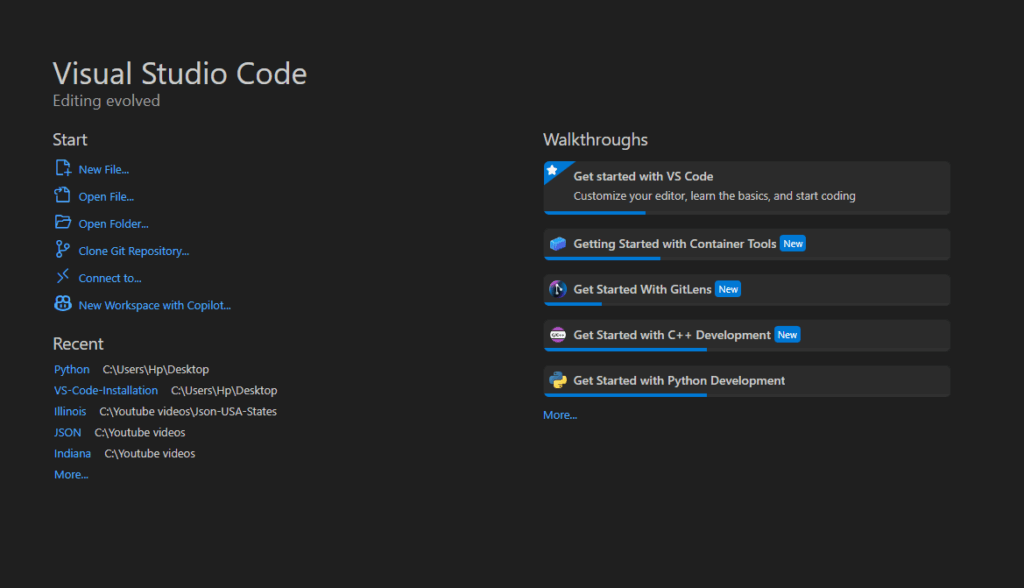
One of the first things you should do is adjust the theme and interface settings to your preference. VS Code offers both light and dark themes. You can change these by navigating to File > Preferences > Color Theme. Customizing the layout and font size improves readability and comfort during extended coding sessions.
3️⃣ Install Essential Extensions in VS Code
Extensions are add-ons that enhance VS Code’s capabilities. They provide language support, debugging tools, themes, and productivity features.
How to Install Extensions:
- Open VS Code.
- Click on the Extensions icon on the left sidebar (or press
Ctrl + Shift + X). - In the search bar, type the name of the extension.
- Click Install next to the desired extension.
Recommended Extensions:

- For Programming:
- Python (by Microsoft) – Adds Python language support.
- ESLint + Prettier – For JavaScript/Node.js linting and formatting.
- Java Extension Pack – For Java development.
- C/C++ (by Microsoft) – Adds C/C++ support.
- For Version Control:
- GitLens – Enhances Git features in VS Code.
- For Productivity:
- Live Server – Launches a local development server for HTML/CSS/JS.
- REST Client – Test API endpoints within VS Code.
- Docker – Manage containers from VS Code.
✅ Tip: Extensions automatically update, ensuring you always have the latest features.
4️⃣ Install Language Runtimes on Windows
To run code, install the necessary runtime for your chosen language:
Steps:
- Python:
- Download: https://www.python.org/downloads/windows/
- During installation, check “Add Python to PATH”.
- Node.js (JavaScript):
- Download: https://nodejs.org/en/download/
- Install the LTS version for stability.
- Java JDK:
- Download: https://www.oracle.com/java/technologies/javase-downloads.html
- Configure the JAVA_HOME environment variable after installation.
✅ Why Needed? These runtimes are required to execute and debug code within VS Code.
5️⃣ Use the Built-In Terminal in VS Code
How to Install VS Code in Windows Step-by-Step Setup Guide. VS Code’s integrated terminal allows you to run commands directly in your editor.
How to Open the Terminal:
- Press Ctrl + ` (backtick) or go to View > Terminal.

Common Commands:
- Git:
git clone <repository-url>– Clone repositories. - Python:
pip install <package>– Install Python packages. - Node.js:
npm install <package>– Install JavaScript packages.
✅ Tip: You can open multiple terminals in different folders simultaneously.
6️⃣ Enable Settings Sync on Windows
If you use VS Code on multiple Windows PCs, syncing your setup saves time.
Steps:
- Open VS Code and click your profile icon in the bottom-left corner.
- Select Turn on Settings Sync.
- Sign in using your Microsoft or GitHub account.
- Choose what to sync: extensions, themes, keyboard shortcuts, and settings.
✅ Result: Your VS Code setup will be consistent across all devices.
Conclusion
In conclusion, by following this step-by-step guide, you have successfully installed VS Code on Windows. Moreover, you have configured essential extensions, set up language runtimes, and enabled settings sync. As a result, you now have a fully functional development environment ready for coding, debugging, and managing projects efficiently. Additionally, this setup ensures that you can streamline your workflow and boost productivity. Furthermore, with the synchronized settings and installed tools, switching between devices becomes seamless. Therefore, you are now equipped to start building, testing, and deploying your projects confidently. Ultimately, by completing these steps, you’ve not only installed VS Code but also laid the foundation for a smooth and effective development experience.
For more insights, visit the ClayDesk Blog: https://blog.claydesk.com